Laytur

Getting the most out of Laytur

Five things that make Laytur work for you.

1 · Save

Save from any app.

In Safari, Instagram, TikTok, YouTube or anywhere else, tap Share, then Laytur. Pick when it should come back. That's it.

Don't see Laytur? Scroll the row of apps to the end, tap More, then Edit, and add Laytur to your Favorites so it's always first.
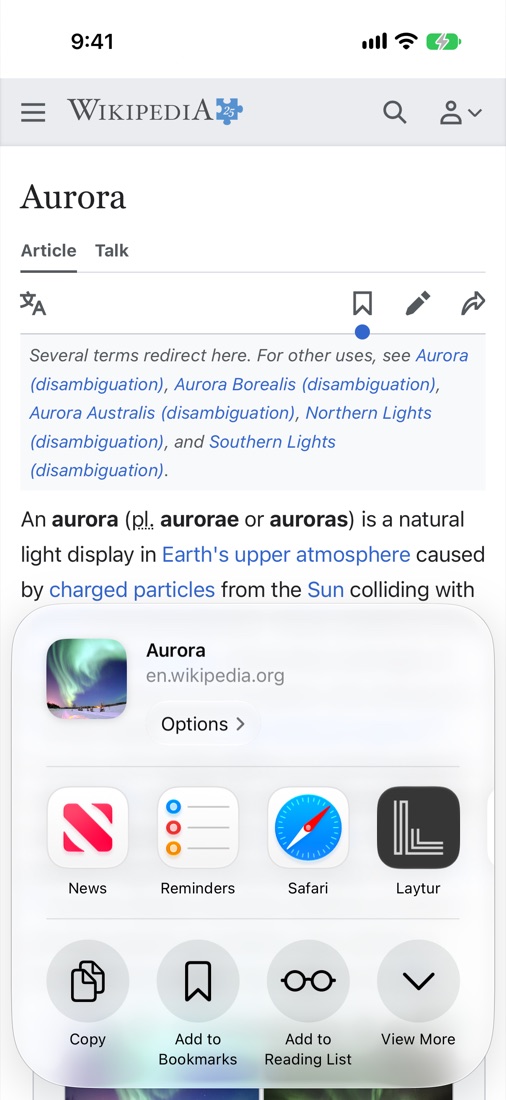
Safari's share sheet with Laytur in the row of apps
2 · Snooze

Not now? Push it back.

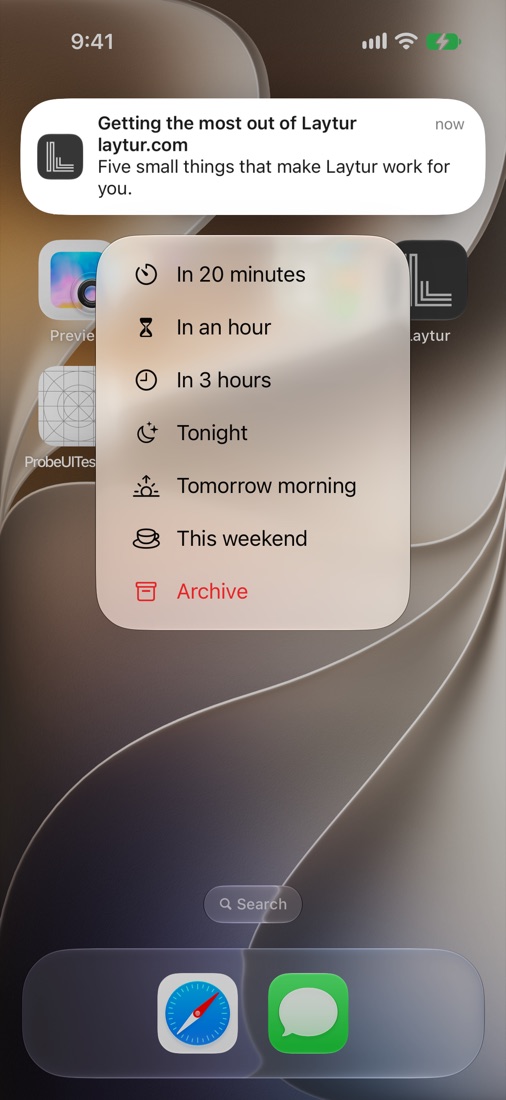
Press and hold a reminder to snooze it: in 20 minutes, in an hour, tonight, tomorrow morning or this weekend. You don't need to open the app.

Several due at once? They arrive together as one notification.

A Laytur reminder held down, showing snooze options
3 · Recipes

Recipes become recipes.

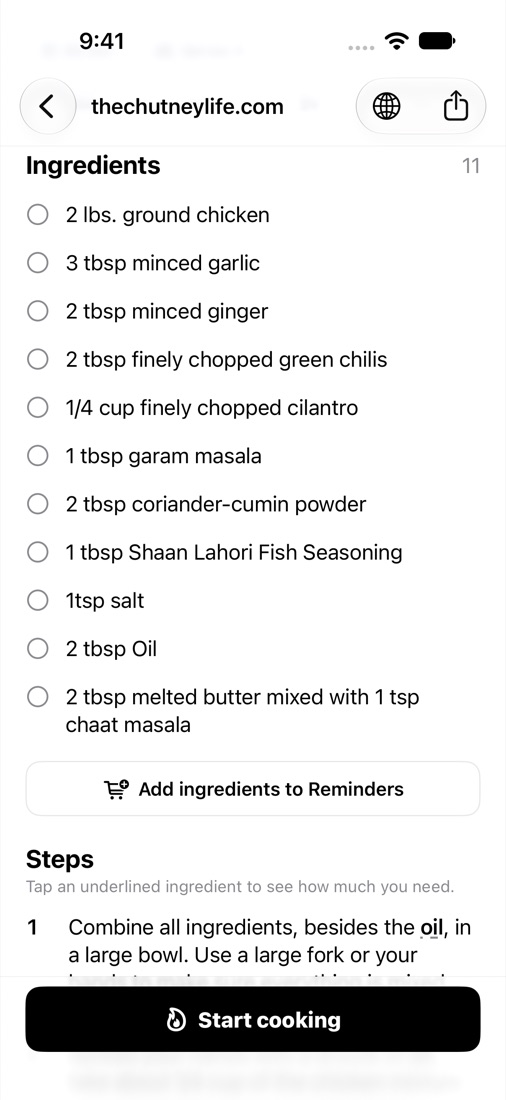
Save a recipe from a blog, TikTok or Instagram and open just the ingredients and steps, with a cooking mode that keeps your screen on.

Your first three recipe and place previews are free. Laytur Pro unlocks them for good.

A saved recipe's ingredients as a checklist
4 · Places

Places remind you when you're there.

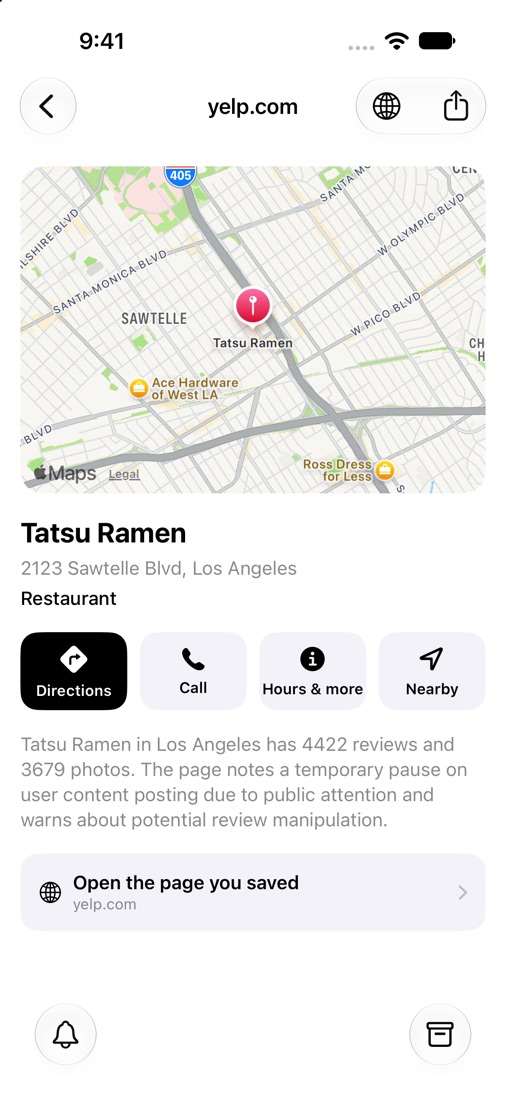
Save a restaurant or a shop and it becomes a card with a map, directions and hours. Choose When I'm nearbyPRO and Laytur reminds you as you pass.

Add home and work in Settings for “Remind me when I get home”.

A saved restaurant as a card with a map, directions and call buttons
5 · Your computer

Save from Chrome, too.

Pages you save on your computer land in Laytur on your iPhone, with the reminder you picked.

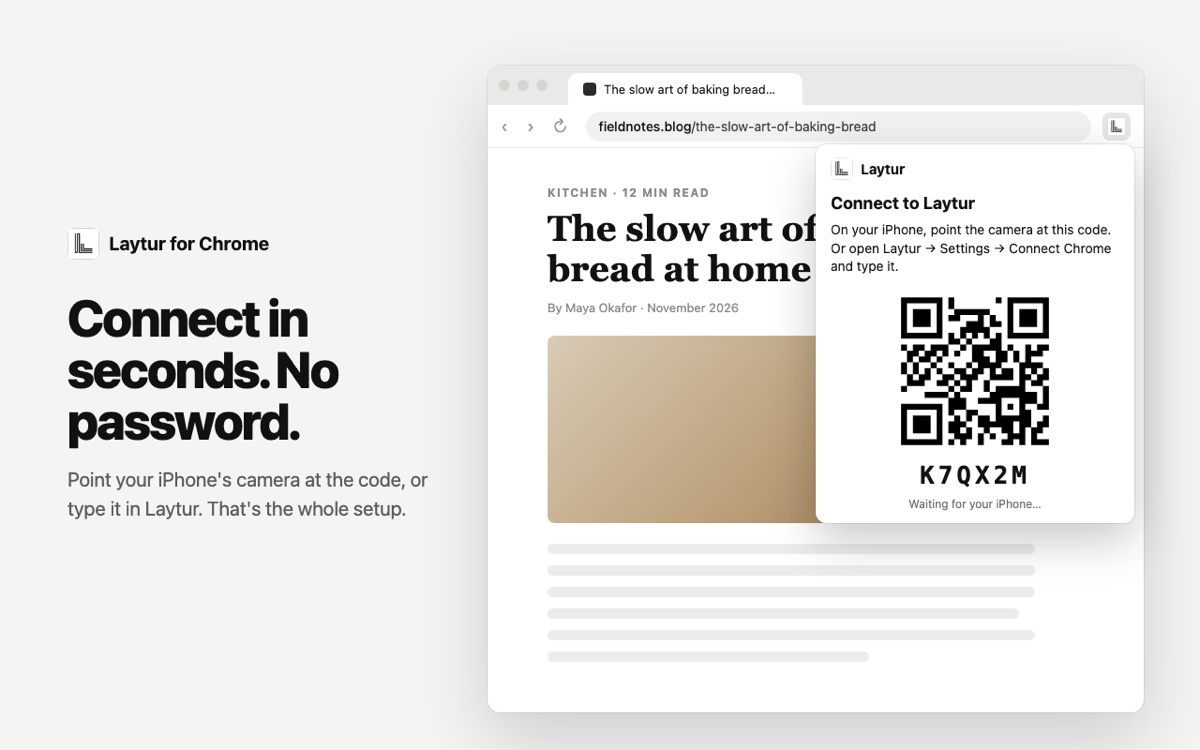
  1. Add Laytur to Chrome, then click Laytur in Chrome's toolbar. It shows a code.
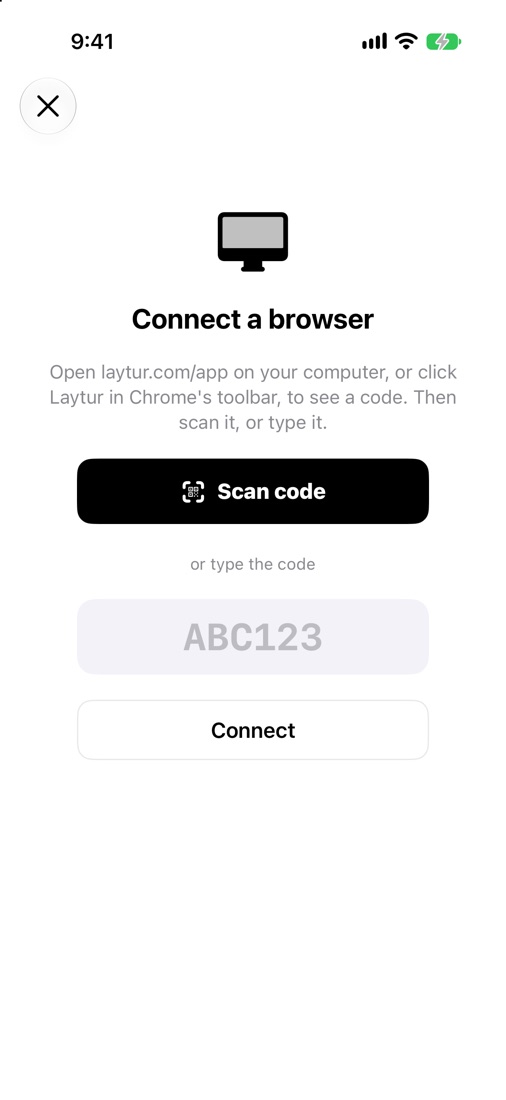
  2. On your iPhone, open Laytur → Settings → Browsers → Connect a browser.
  3. Tap Scan code and point your camera at the code. No password.

From then on, click Laytur (or press ⌥ ⇧ L) on any page to save it. Your whole list is also at laytur.com/appPRO, connected the same way.

The Laytur Chrome extension showing a code to connect Laytur on iPhone: Connect a browser, with a Scan code button

Questions? We're here to help.